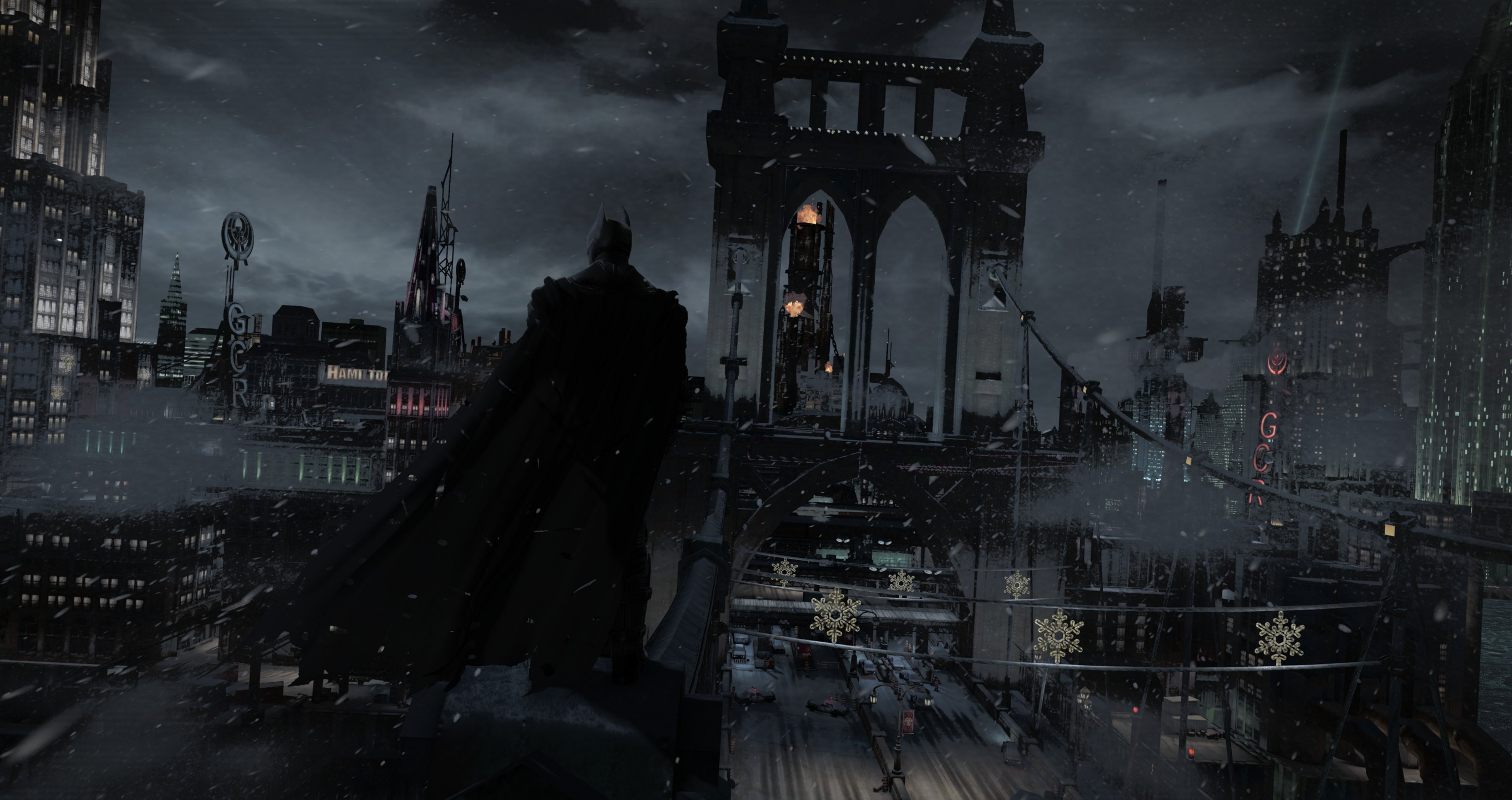
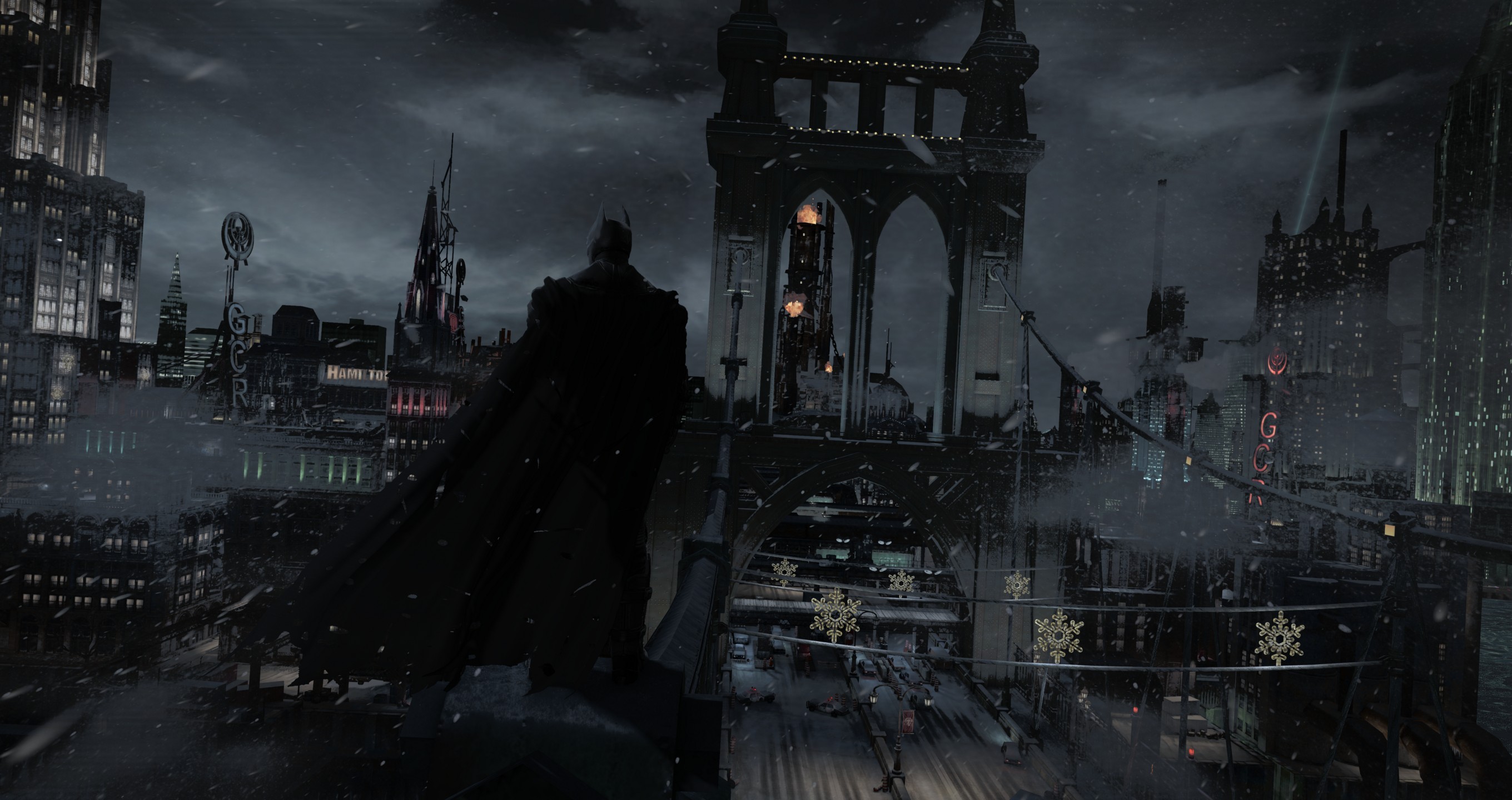
Here is pack cameras for Batman: Arkham Asylum, Batman: Arkham City, and Batman: Arkham Origins, giving a fresh cinematic feel to exploring Gotham from every angle. On top of that, a better LOD for sharper visuals because Batman deserves nothing less than a crystal-clear night patrol.
The latest tables also include controller support and IGCS Relay support for use with IGCSDOF.
Required
- Batman: Arkham Asylum Cheat Table
- Batman: Arkham City Cheat Table
- Batman: Arkham Origins Cheat Table
- Cheat Engine 7.6 or higher
Optional
These mods are optional but highly recommended. Read their description and how to install.
Controls
| Key | Description |
|---|---|
| NUMPAD 8,5,4,6 | Forward, backward, left and right |
| NUMPAD 7,9 | Camera up and down |
| NUMPAD 1,3 | Camera roll |
| ARROW Up, Down | Pitch up and down |
| ARROW Left, Right | Yaw left and right |
| NUMPAD +,- | Zoom in and out |
| Insert | Enable camera structure |
| Delete | Disable pause menu |
| Page Down (Only Asylum and City) | Enable slomo |
| F1-F3 | Slomo 0.15, 0.3 and Normal speed |
| Page Up | Better LOD |
| Left Control | Slow camera movements |
| Left Alt | Slower camera movements |
Controller
The camera can also be controlled with an Xbox/XInput compatible controller.
- Left Stick - Move forward/backward and strafe left/right
- Right Stick - Yaw and pitch
- Left / Right Trigger - Move camera down/up
- LB / RB - Roll
- B - Reset roll
- X - Slow movement
- Y - Fast movement
- D-Pad Up / Down - FOV
Controller input is ignored while IGCSDOF is rendering so it does not interfere with an IGCS Relay session.
Better Level of Detail
Arkham Origins
Arkham City
How To
Use The Cheat Table
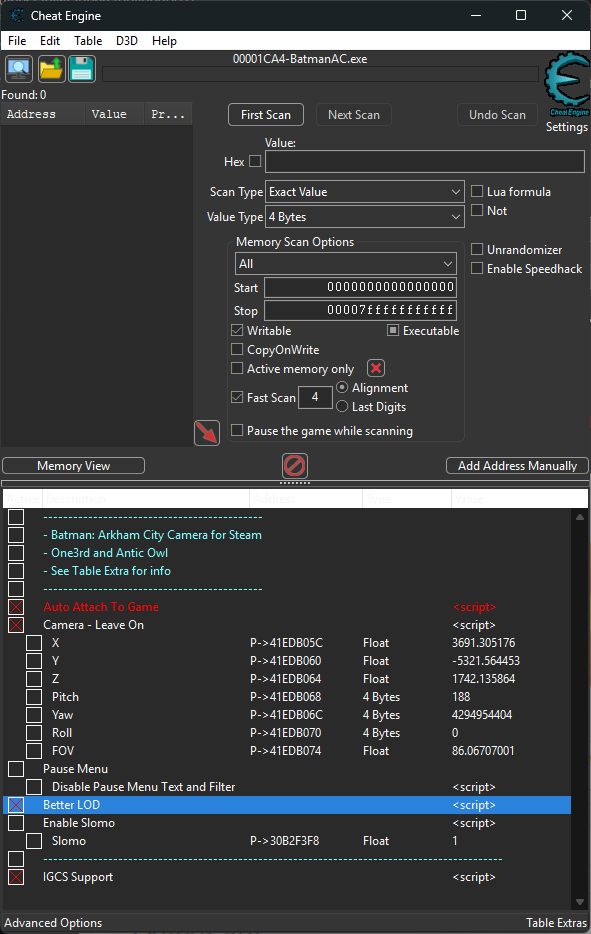
Once you have installed Cheat Engine 7.6 or higher (if not already done), click twice on the cheat table file you downloaded. Check the Auto Attach to Game box. Cheat Engine will automatically connect to the game when detected.
Press Page Down to enable the camera structure and leave on.
The current tables include the camera, pause/slomo and LOD options together with the new IGCS Support script.
How to use IGCS Support
All three games are 32-bit, so use the 32-bit versions of IGCS Connector and IGCS Relay:
IGCSConnector.addon32IGCSRelay.addon32
The rendering API is different depending on the game:
- Batman: Arkham Asylum - DirectX 9. Use dgVoodoo2 first, then install ReShade for DirectX 10/11/12.
- Batman: Arkham City - DirectX 11. Install ReShade directly for DirectX 10/11/12. dgVoodoo2 is not required.
- Batman: Arkham Origins - DirectX 11. Install ReShade directly for DirectX 10/11/12. dgVoodoo2 is not required.
You need:
- ReShade with add-on support
- IGCS Connector
- IGCS Relay
- dgVoodoo2 for Arkham Asylum only
Arkham Asylum - dgVoodoo2 setup
Arkham Asylum uses DirectX 9, so dgVoodoo2 is required before installing ReShade.
From the dgVoodoo2 archive, copy these files into the same directory as ShippingPC-BmGame.exe:
MS\x86\D3D9.dlldgVoodooCpl.exedgVoodoo.conf
Run dgVoodooCpl.exe from the game directory so it uses the local dgVoodoo.conf file.
In the General tab, set the output API to Direct3D 11 (feature level 11.0). This is the recommended target for ReShade.
Then open the DirectX tab and disable the dgVoodoo Watermark option so the dgVoodoo logo is not displayed in-game. Click Apply to save the configuration.
For more information about dgVoodoo2 installation and configuration, see dgVoodoo2 - Marty’s Mods Guides.
Once dgVoodoo2 is configured, install ReShade for DirectX 10/11/12, not DirectX 9. dgVoodoo2 translates Arkham Asylum’s original DX9 output to DX11 for ReShade. This is important for the IGCS Connector/Relay add-ons, and it also allows you to use ReShade shaders and effects that require a DX10/11 rendering path and are not available through native DX9.
Arkham City and Arkham Origins - DirectX 11
No wrapper is needed. Install ReShade directly and select DirectX 10/11/12.
Make sure you use a ReShade build with add-on support.
Install IGCS Connector and IGCS Relay
Copy the 32-bit add-ons into the ReShade add-on folder:
IGCSConnector.addon32IGCSRelay.addon32
Do not use the .addon64 versions for these games.
Enable the camera and Relay support
Start the game and open the Cheat Engine table.
- Enable
Auto Attach To Game. - Enable
Camera - Leave On. - Enable
IGCS Support. - Open the ReShade overlay and check the IGCS Relay panel.
- The Relay status should show that the camera connection is ready.
Once the status is OK, frame your shot and start IGCSDOF normally. IGCS Relay will control the Cheat Engine camera automatically while the image is rendered and restore the camera position when the render is finished.
For more information about the Relay itself, see the IGCS Relay guide.
Take A Screenshot
- Press
Escapeon keyboard orPauseon your controller to pause the game. - Press
Deleteto disable the pause menu. - Frame, take your shot and go the other way around to get back in game.
Resources
Big thanks to One3rd for the tests. Be sure to check his work!